
Settings reference
The settings under SEO Generator › Settings apply to your whole website, to all your settings pages. The settings of one set of pages, like the search terms and locations, are on the settings page itself: see SEO Generator: the basics.
The most important settings are also in Plugin setup. You open it with the Plugin setup button at the top of this page.
Settings
Placeholders
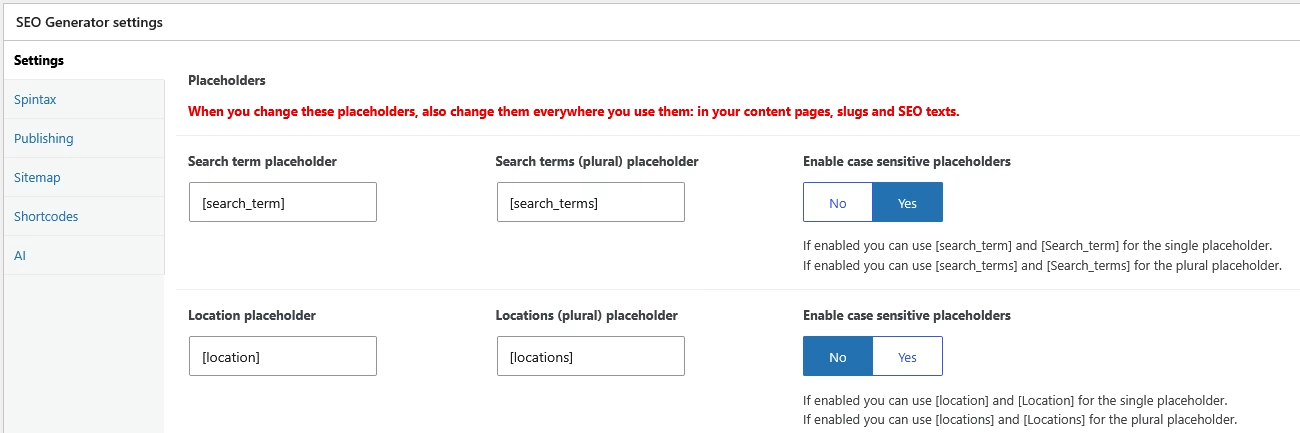
The placeholders are the codes you write in your texts, where every page fills in its own search term and location.
- Search term placeholder:
[search_term], the search term of the page. - Search terms (plural) placeholder:
[search_terms], the plural you add after a | in the list of search terms, for example “emergency plumber | emergency plumbers”. - Location placeholder:
[location], the location of the page. - Locations (plural) placeholder:
[locations], for the rare case that a location has a plural form, added after a | in the list of locations.
You can change these codes, but then change them in all your texts too: a code that no longer matches appears literally on your pages.
Enable case sensitive placeholders, for search terms and for locations: with Yes, [Search_term] starts with a capital and [search_term] does not. Our advice: Yes for search terms, No for locations, so place names keep their own capitals. See Using case sensitive placeholders.
Page
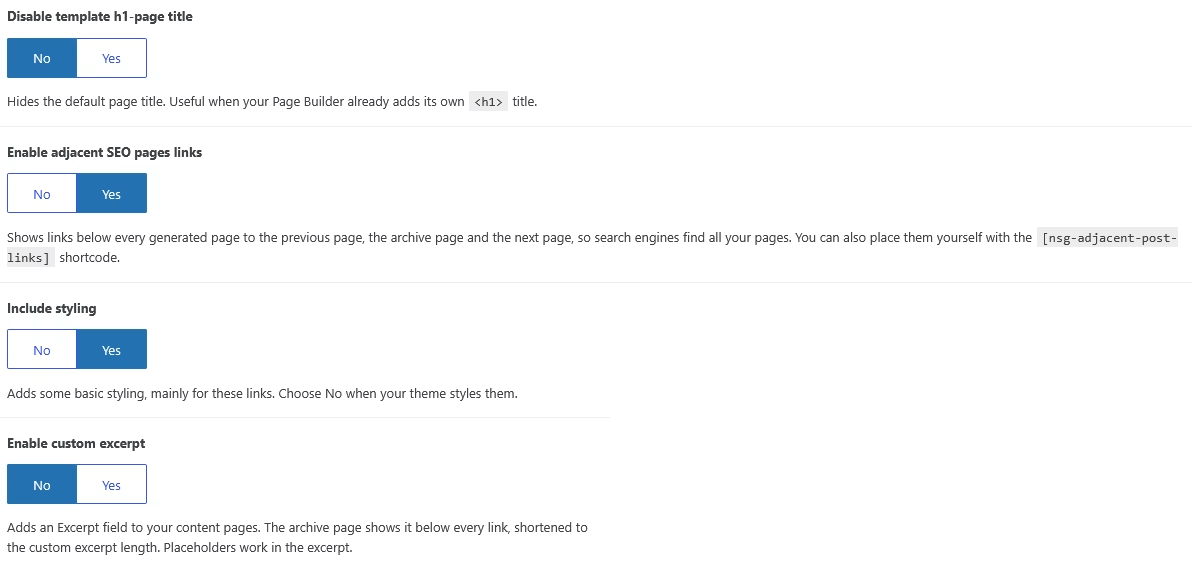
- Disable template h1-page title: hides the page title that your theme shows. Useful when you design the content page with a page builder that adds its own H1 title.
- Enable adjacent SEO pages links: shows links below every page to the previous page, the archive page and the next page. This helps search engines find all your pages. We recommend Yes. You can also place the links yourself with the
[nsg-adjacent-post-links]shortcode. - Include styling: adds some basic styling, mainly for these links. Choose No when your theme styles them.
- Enable custom excerpt: adds an Excerpt field to your content pages. The archive page shows it below every link, shortened to the Custom excerpt length in words. Placeholders work in the excerpt.
Spintax
Switch spintax on and choose how a page picks its options. See Spintax.
Publishing
Let your pages go live gradually, at a pace you choose. See Gradual publishing.
Sitemap
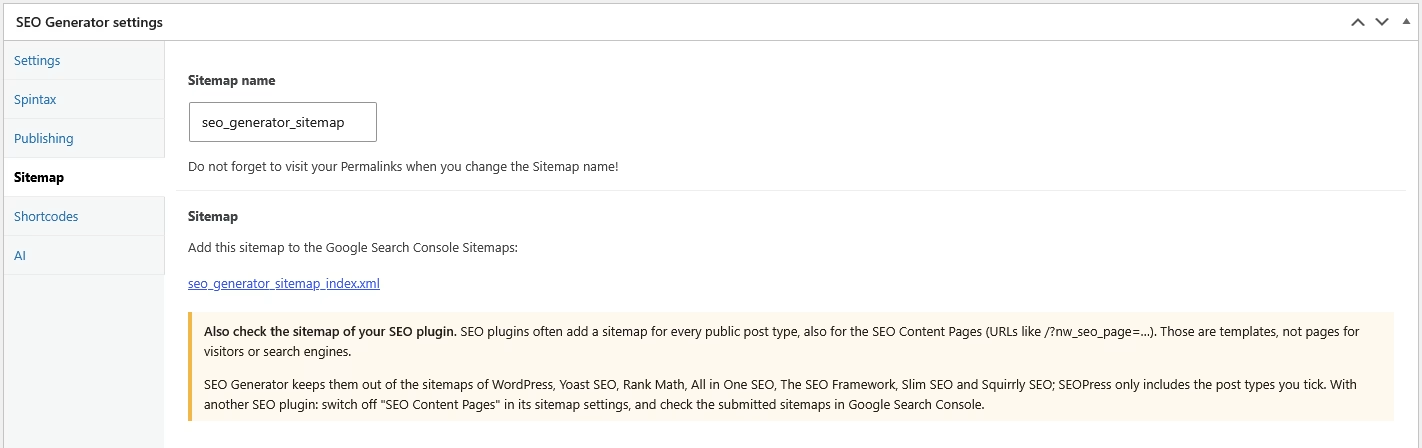
SEO Generator has its own XML sitemap with all your generated pages that are live. The tab shows its address, by default yourdomain.com/seo_generator_sitemap_index.xml. Open it to check that it works.
Sitemap name is part of that address. When you change it, go to Settings › Permalinks in WordPress and click Save Changes, so WordPress knows the new address.
Add the sitemap to Google Search Console:
- Sign in to Google Search Console and choose your website.
- In the menu on the left, under Indexing, click Sitemaps.
- Enter
seo_generator_sitemap_index.xml(or your own sitemap name followed by_index.xml) and click Submit.
Also check the sitemap of your SEO plugin. SEO plugins often add a sitemap for every post type, also for the SEO Content Pages. Those are templates, not pages for visitors. SEO Generator keeps them out of the sitemaps of WordPress, Yoast SEO, Rank Math, All in One SEO, The SEO Framework, Slim SEO and Squirrly SEO; SEOPress only includes the post types you tick. With another SEO plugin, switch off “SEO Content Pages” in its sitemap settings.
Shortcodes
Examples of the [nsg_seo_page] shortcode, which shows a part of your text only for certain search terms or locations. See Using shortcodes.
AI
Only for administrators. Switch the AI features on or off, choose your AI provider and add your own API key. See Using AI in SEO Generator.
Why are not all my pages indexed by Google?
That is normal. Google decides for itself which pages it indexes, and it rarely indexes every page of a large set. It also takes time: Google visits a limited number of pages of a website at a time. You can help:
- Write a text of at least 300 words that is really useful for visitors.
- Use spintax, so every page has its own version of the text.
- Use gradual publishing, so your pages appear at a natural pace.
- Start with your most important search terms and locations. Fewer good pages usually work better than very many pages.